This guide covers Windows Server 2016, 2019, and 2022: verify or convert an Evaluation edition, enter the correct product key, and complete online or telephone activation.
Before you begin: confirm that Windows Server is not running an Evaluation edition, install pending updates, verify that your Standard or Datacenter license matches the installed edition, and have your valid 25-character product key ready.
1. Check the installed Windows Server edition
Standard and Datacenter product keys cannot activate an Evaluation installation directly. Open PowerShell or Command Prompt as administrator and run:
DISM /Online /Get-CurrentEdition
DISM /Online /Get-TargetEditions
If the current edition contains Eval or Evaluation, convert it to the licensed target edition before activation. Replace XXXXX-XXXXX-XXXXX-XXXXX-XXXXX with your valid product key.
Convert to Windows Server Standard
DISM /Online /Set-Edition:ServerStandard /ProductKey:XXXXX-XXXXX-XXXXX-XXXXX-XXXXX /AcceptEulaConvert to Windows Server Datacenter
DISM /Online /Set-Edition:ServerDatacenter /ProductKey:XXXXX-XXXXX-XXXXX-XXXXX-XXXXX /AcceptEulaUse only an edition listed by Get-TargetEditions. Restart the server after the conversion finishes, then run DISM /Online /Get-CurrentEdition again to confirm the new edition.
2. Open the activation settings
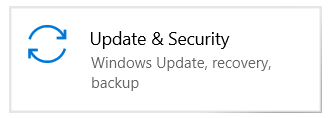
Open Settings from the Start menu and navigate to the Windows activation page. Depending on the Windows Server version, it may appear under Update & Security > Activation or System > Activation.

3. Enter the Windows Server product key
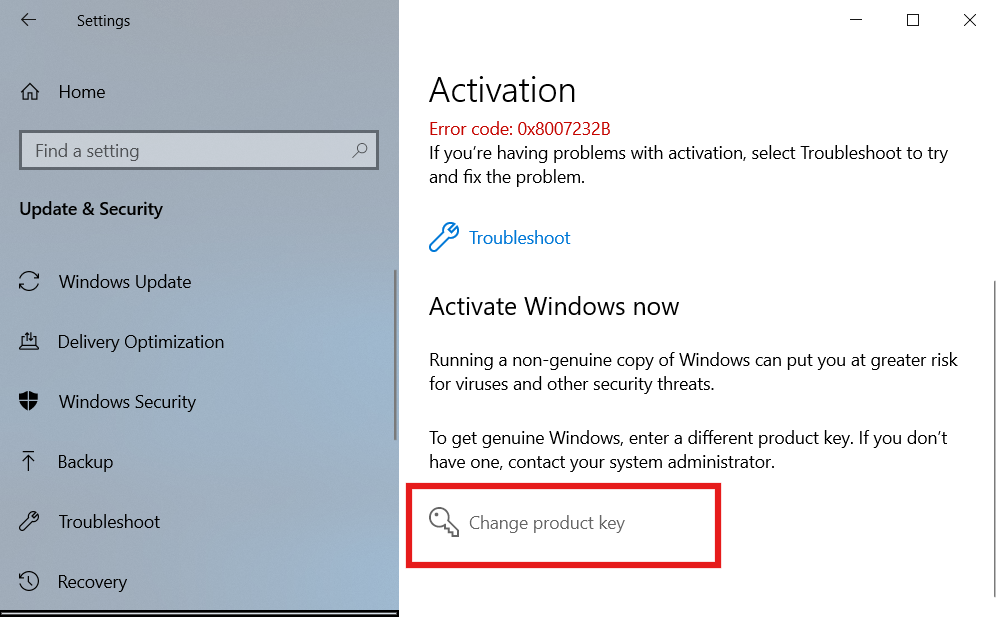
Select Change product key, enter the 25-character key exactly as supplied, and select Next.
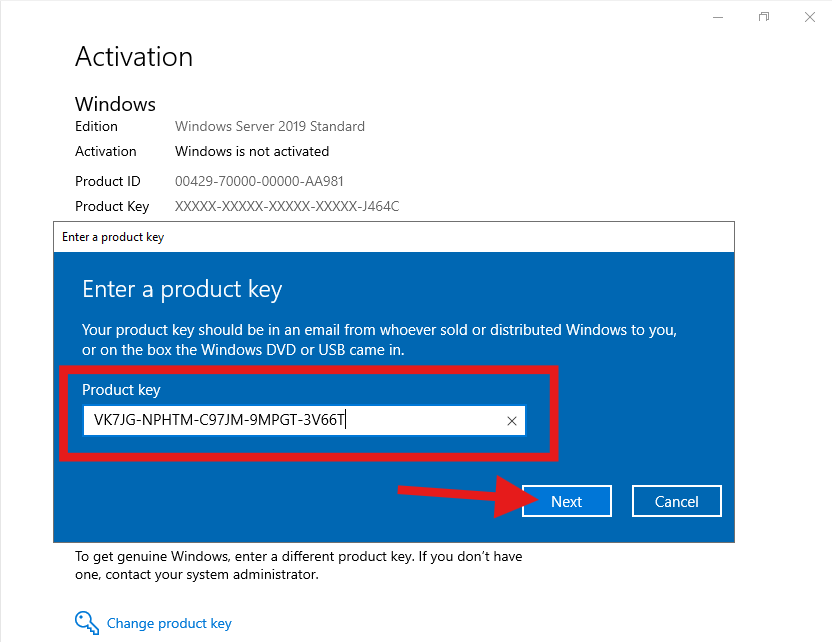
If Windows Server applies an edition change or requests a restart, let the process finish and return to the Activation page afterward.
4. Check the activation result
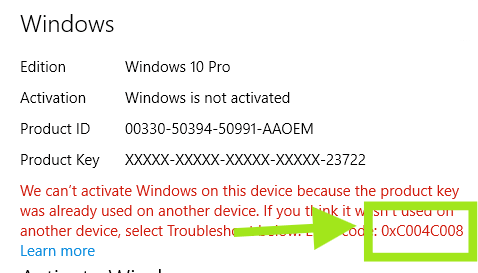
If Windows reports that it is activated, the process is complete. If error 0xC004C008 appears, close the error message and continue with telephone activation.
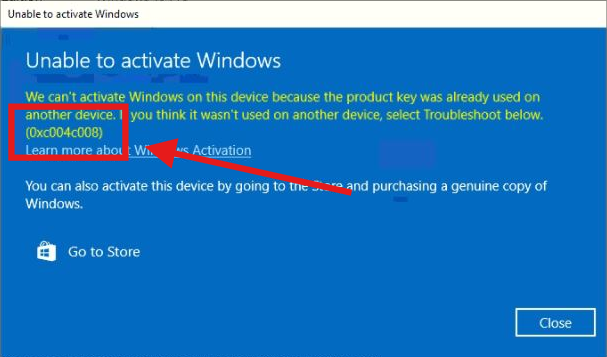
5. Start telephone activation
Select Activate by phone. If that option is not displayed, press Windows + R, enter slui 4, and select OK.
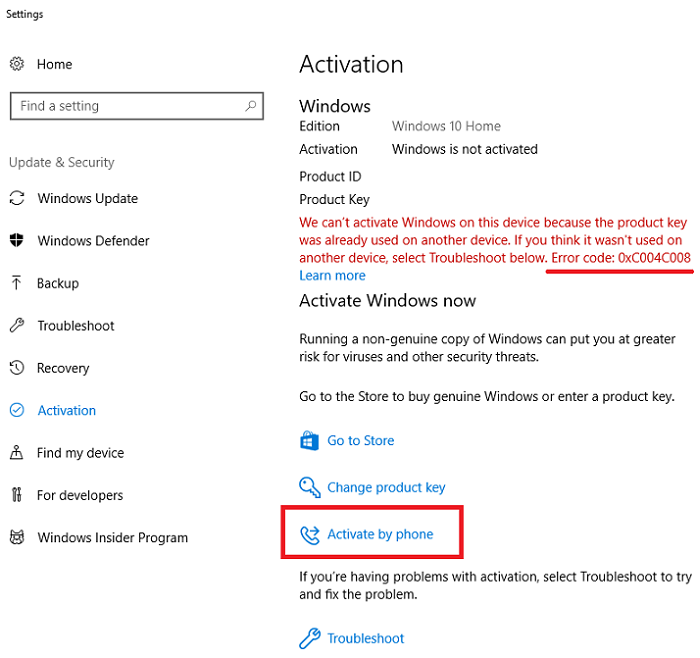
6. Copy the Installation ID
Select your country or region and continue. The wizard displays an Installation ID (IID) divided into groups. Copy every group in the displayed order.
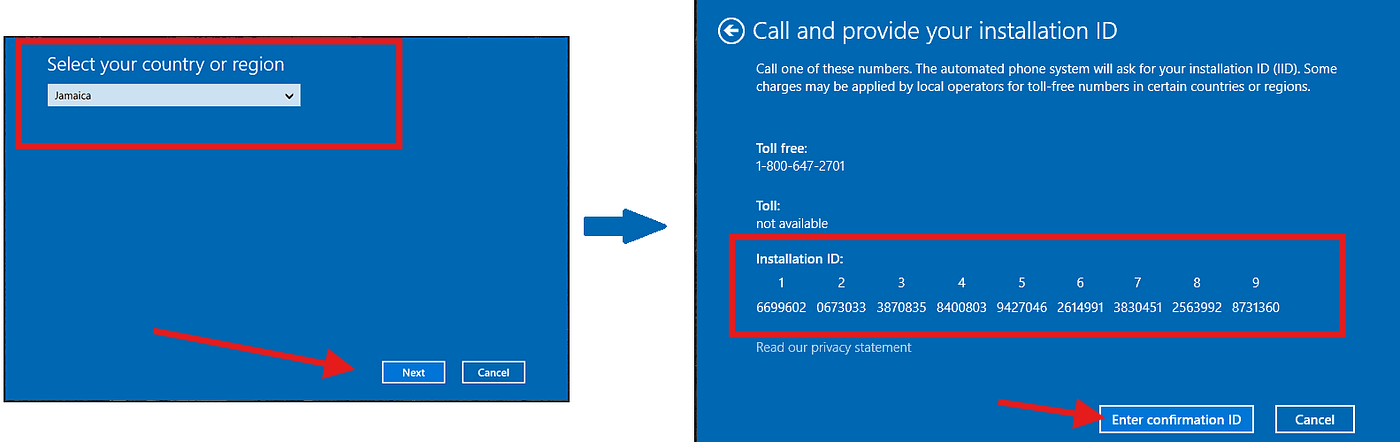
7. Obtain your Confirmation ID
Choose one of these methods to exchange the Installation ID for a Confirmation ID (CID):
- Microsoft Product Activation Portal: the official, free option. It is a manual process: sign in, choose product activation, and enter the IID groups.
- InstantLicX Telegram bot: a faster paid option. Send the IID to the Telegram bot as text or as an image; you do not need to enter each group manually.
- GetCID.xyz: a paid web experience that accepts the IID as text or image. It also offers an API, a WordPress plugin for store integrations, and WhatsApp and Telegram bots.
Using the free Microsoft portal
Open the Microsoft Product Activation Portal, sign in with your Microsoft account, and choose Activate a Microsoft Product.

Select Windows, choose the closest matching Windows Server version when it is listed, and continue until the portal requests the Installation ID.
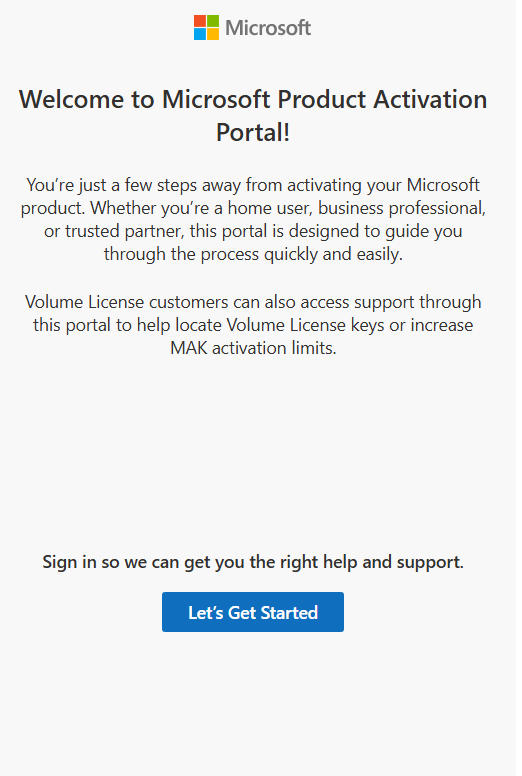
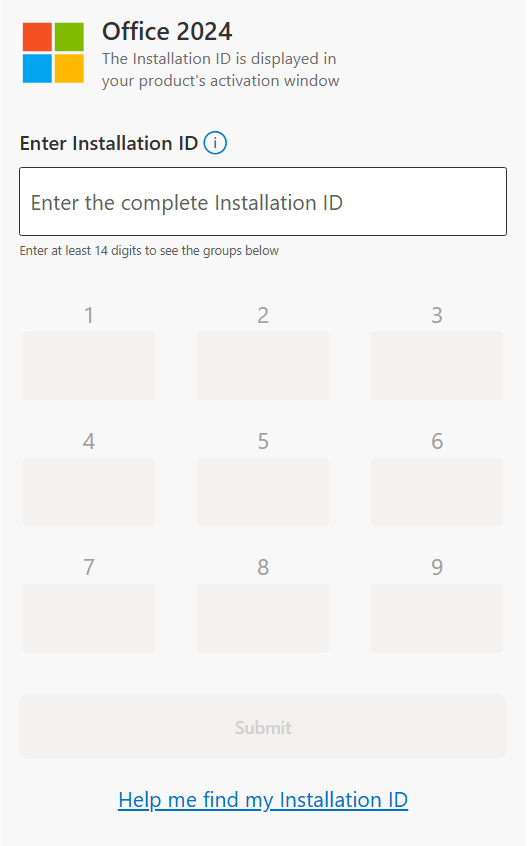
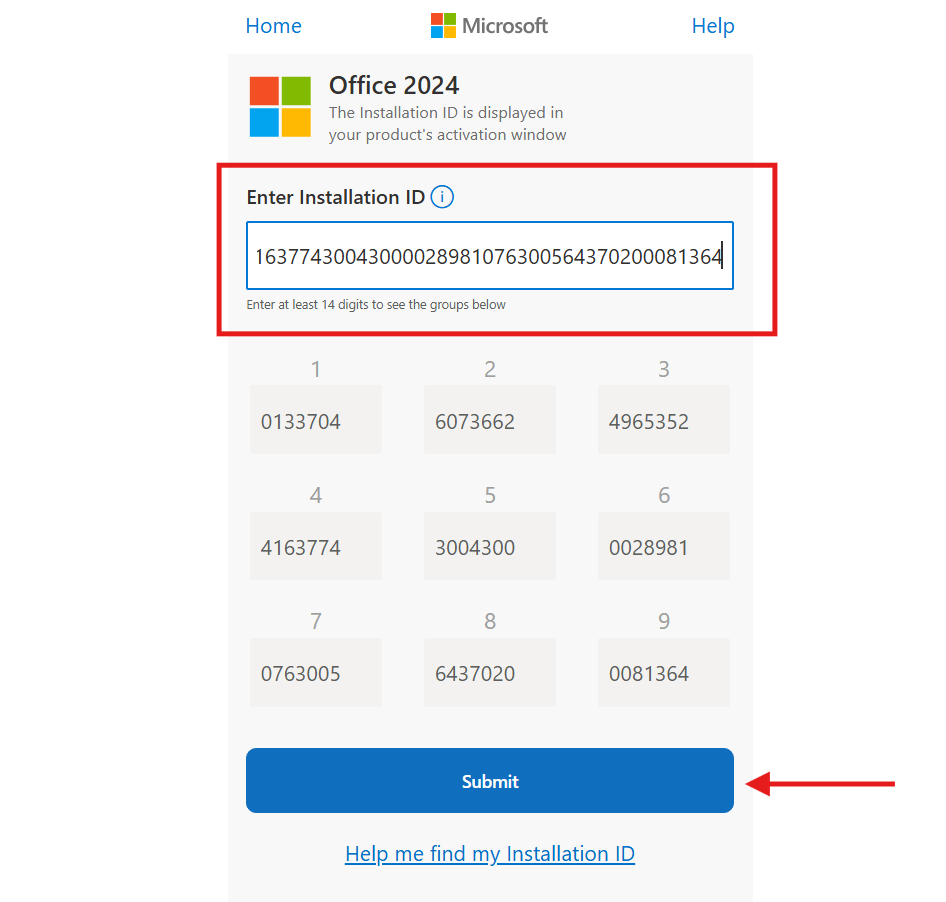
Paste the complete Installation ID, verify the groups, and submit it.
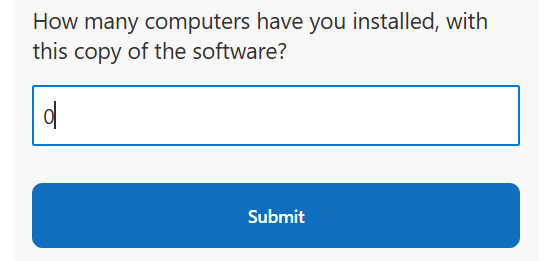
If the portal asks how many computers have been installed with this copy and this is a new activation, enter 0.
8. Enter the Confirmation ID
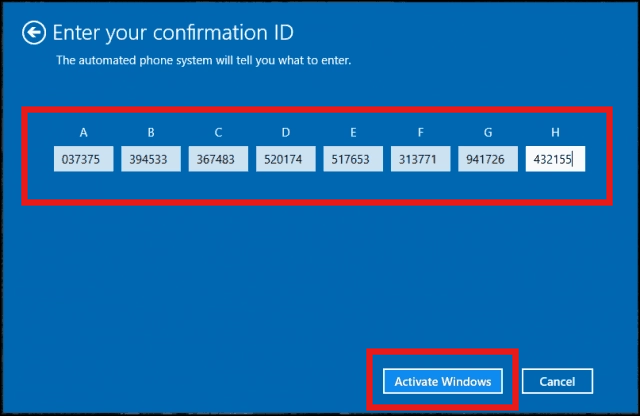
After the IID is accepted, the selected method returns a Confirmation ID divided into groups.
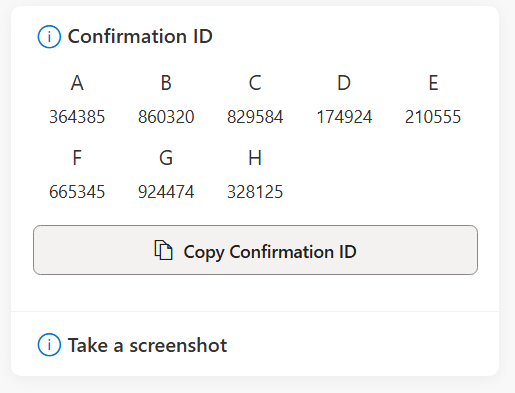
Return to the Windows activation wizard, enter each CID group into its corresponding field, and select Activate Windows.
9. Confirm that Windows Server is activated
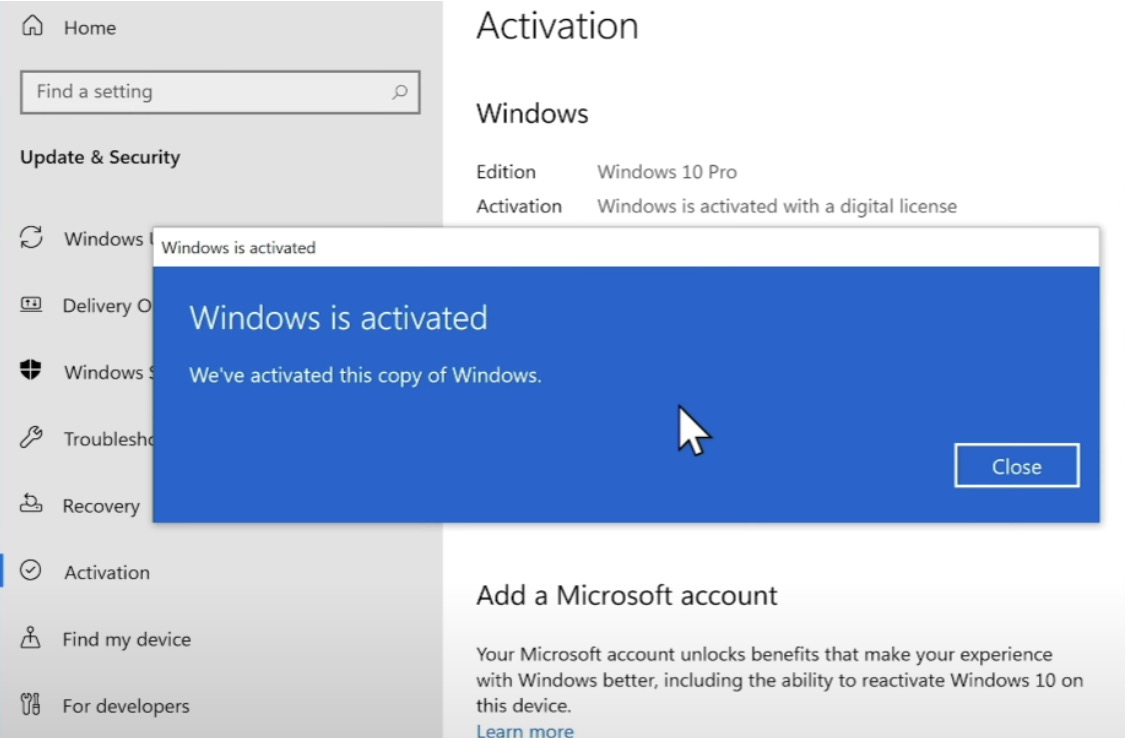
Return to the Activation page and confirm that Windows is activated. You can also open an elevated PowerShell or Command Prompt window and run slmgr /xpr to check the activation state.
Troubleshooting
- Confirm that the server is no longer using an Evaluation edition.
- Make sure Standard or Datacenter matches the edition covered by the key.
- Install pending Windows Server updates and restart before trying again.
- Check that every IID and CID group was copied in the correct order.
- Use
DISM /Online /Get-CurrentEditionandslmgr /dlvwhen you need detailed edition or licensing information.