Learn how to activate Windows 10 with a product key and, when online activation is unavailable, complete telephone activation using an Installation ID and Confirmation ID.
Before you begin: install pending Windows updates, make sure the installed Windows edition matches your license, keep an internet connection available, and have your valid 25-character product key ready.
1. Open the Windows activation settings
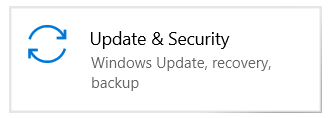
Open Settings from the Start menu, then select Update & Security.
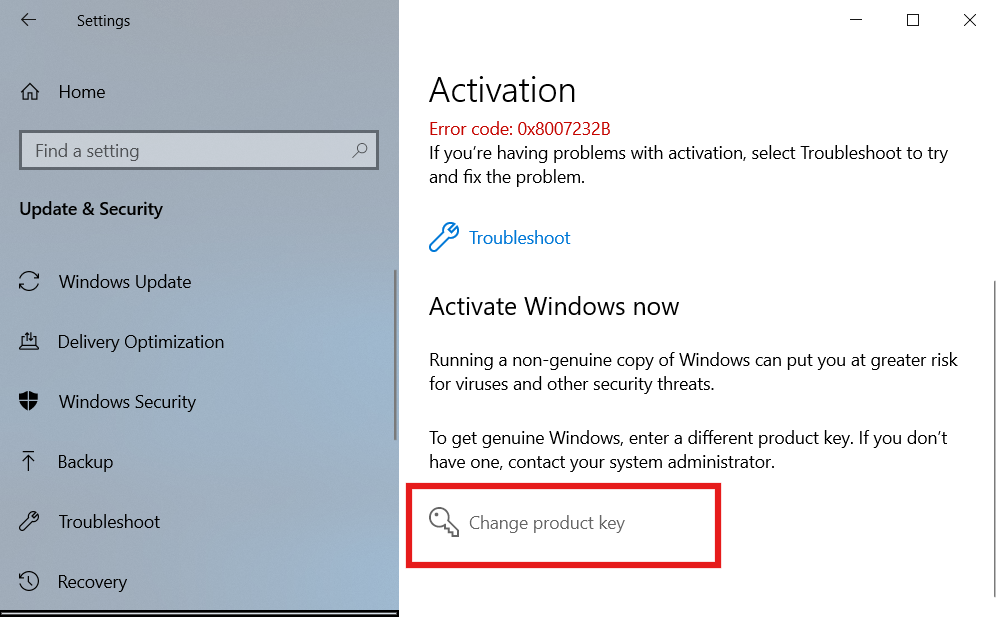
Select Activation in the left menu. This page shows the installed edition and current activation status.

2. Change the product key
Select Change product key. If that option is unavailable, confirm that your Windows account has administrator permissions.
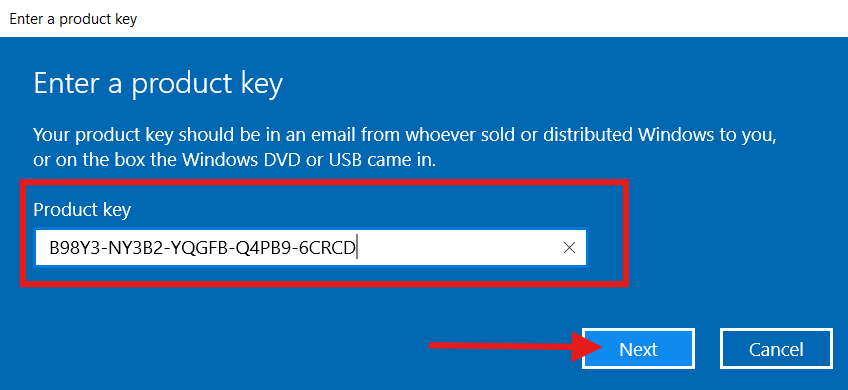
Enter the 25-character key exactly as supplied, select Next, and allow Windows to verify it.
If Windows starts upgrading the installed edition, wait until the process finishes. The computer may restart. Return to the Activation page afterward and check the status before continuing.
3. Check the activation result
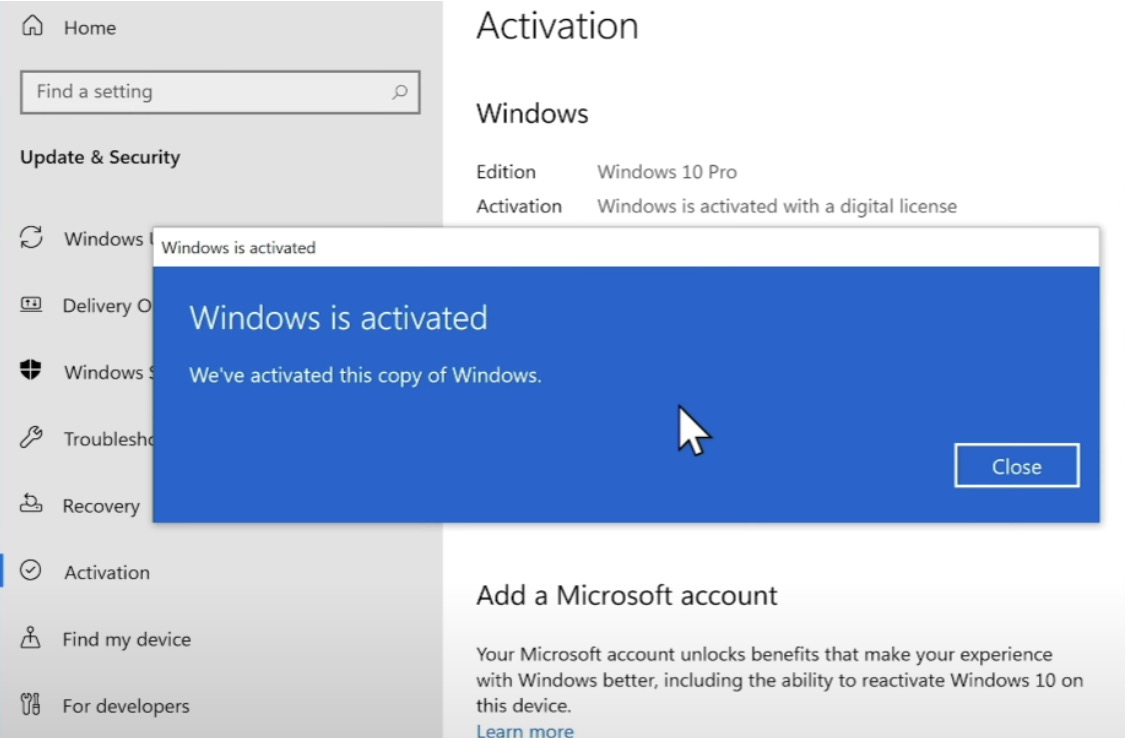
If the page says Windows is activated, the process is complete. No telephone activation is required.
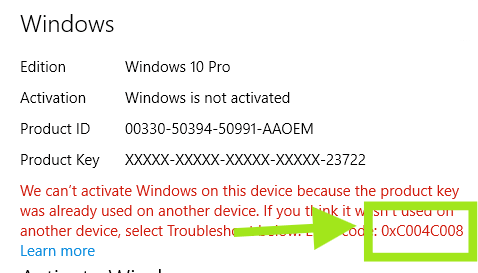
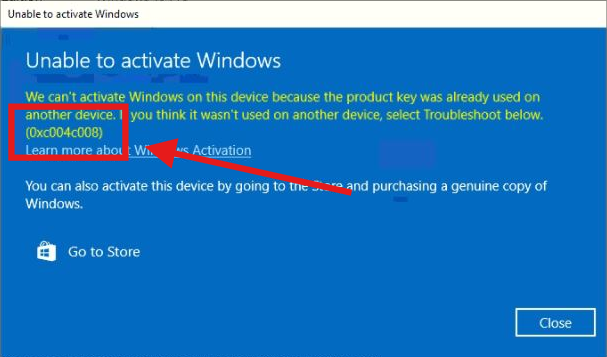
If error 0xC004C008 appears, the key could not be activated online. Close the error message and continue with the telephone activation steps below.
4. Start telephone activation
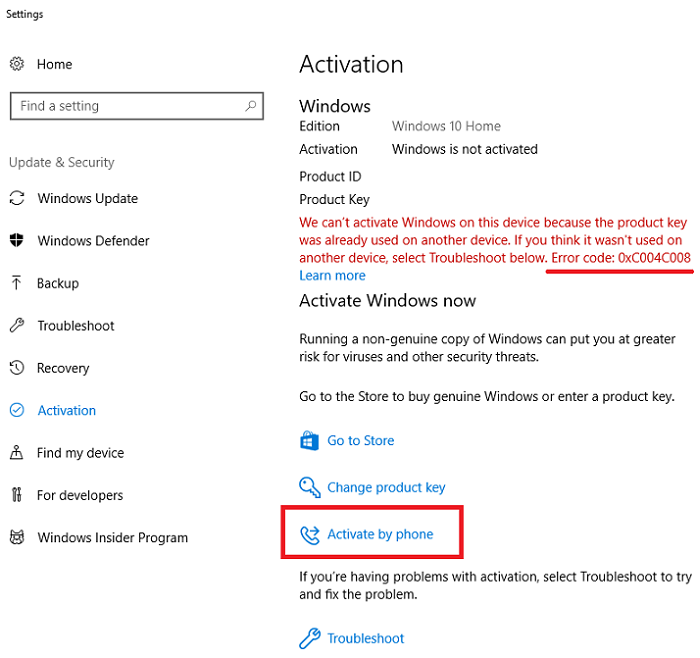
Select Activate by phone. If the link is not visible, press Windows + R, enter slui 4, and select OK.
5. Copy the Installation ID
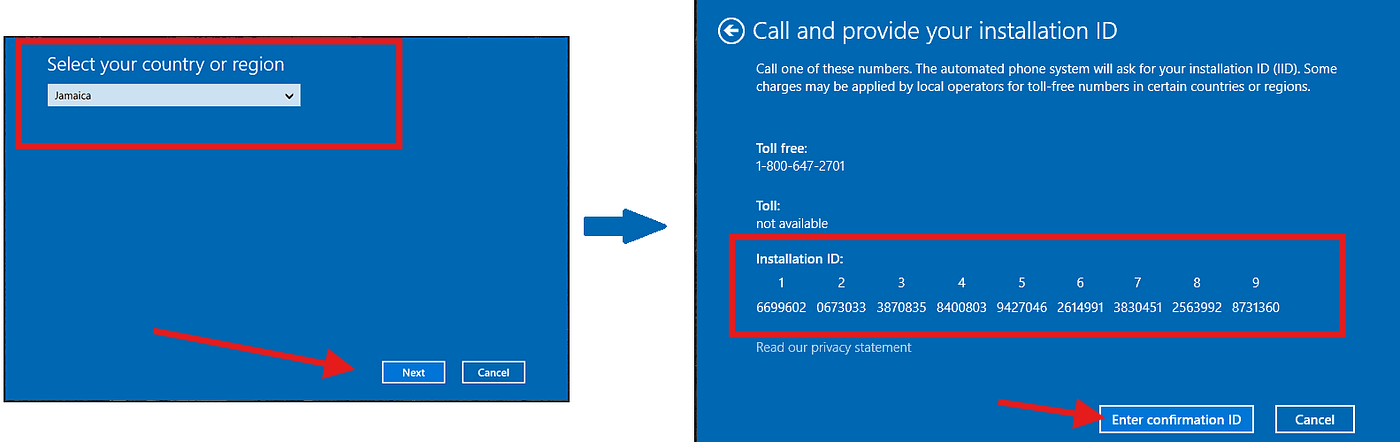
Select your country or region and continue. If your location is unavailable, select another listed country; this does not change the installed Windows language or region.
The wizard displays an Installation ID (IID) divided into groups. Copy every group in the displayed order. You need the complete IID to obtain a Confirmation ID.
6. Obtain your Confirmation ID
Choose one of these methods to exchange the Installation ID for a Confirmation ID (CID):
- Microsoft Product Activation Portal: the official, free option. It is a manual process: sign in, choose product activation, and enter the IID groups.
- InstantLicX Telegram bot: a faster paid option. Send the IID to the Telegram bot as text or as an image; you do not need to enter each group manually.
- GetCID.xyz: a paid web experience that accepts the IID as text or image. It also offers an API, a WordPress plugin for store integrations, and WhatsApp and Telegram bots.
Using the free Microsoft portal
Open the Microsoft Product Activation Portal, sign in with your Microsoft account, and choose Activate a Microsoft Product.

Select Windows, choose the Windows version that matches your installation, and continue until the portal requests the Installation ID.
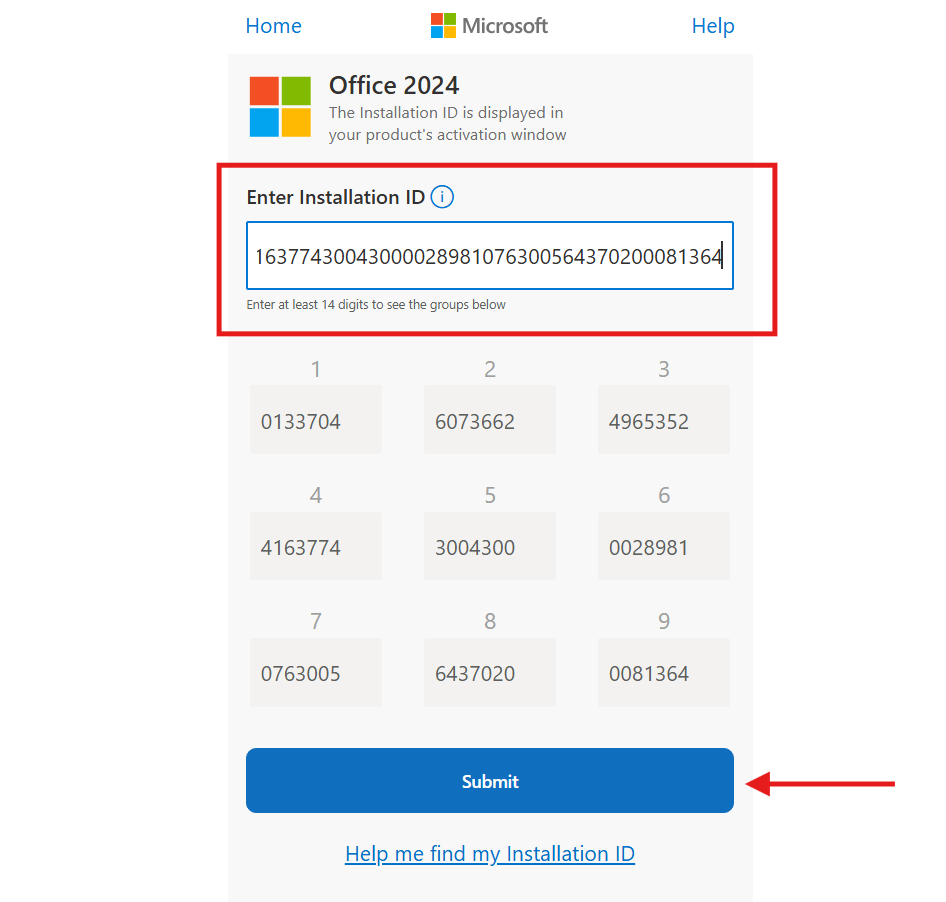
Paste the complete Installation ID, verify the groups, and submit it.
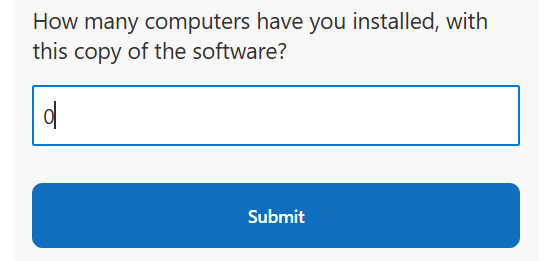
If the portal asks how many computers have been installed with this copy and this is a new activation, enter 0.
7. Enter the Confirmation ID
After the IID is accepted, the selected method returns a Confirmation ID divided into groups.
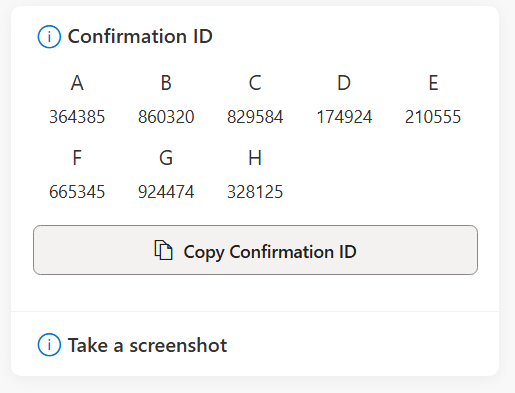
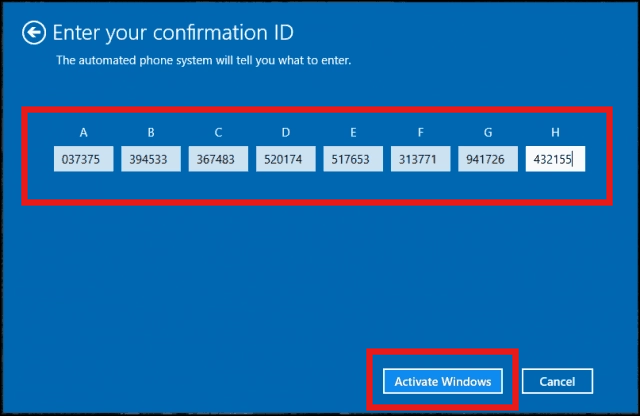
Return to the Windows activation wizard and enter each CID group into its corresponding field. Select Activate Windows to finish.
8. Confirm that Windows is activated
Return to Settings > Update & Security > Activation. The activation status should now confirm that Windows is activated.
Troubleshooting
- Confirm that the installed Windows edition matches the edition covered by your product key.
- Install pending Windows updates and restart the computer before trying again.
- Run the Activation troubleshooter if Windows reports a hardware or digital-license issue.
- Check that every IID and CID group was copied in the correct order.
- If Windows is damaged or heavily outdated, repair or update the installation before retrying activation.