A version-specific guide to activating Windows 11 Home or Pro, including the modern Settings path and the telephone method for obtaining and entering a Confirmation ID.
Before you begin: install current Windows 11 updates, confirm that the Home or Pro edition installed on the PC matches your license, connect to the internet, and keep the 25-character product key nearby.
1. Open the Windows 11 activation page
Open Settings, select System, and then choose Activation. This screen identifies the installed edition and shows whether Windows is already active.
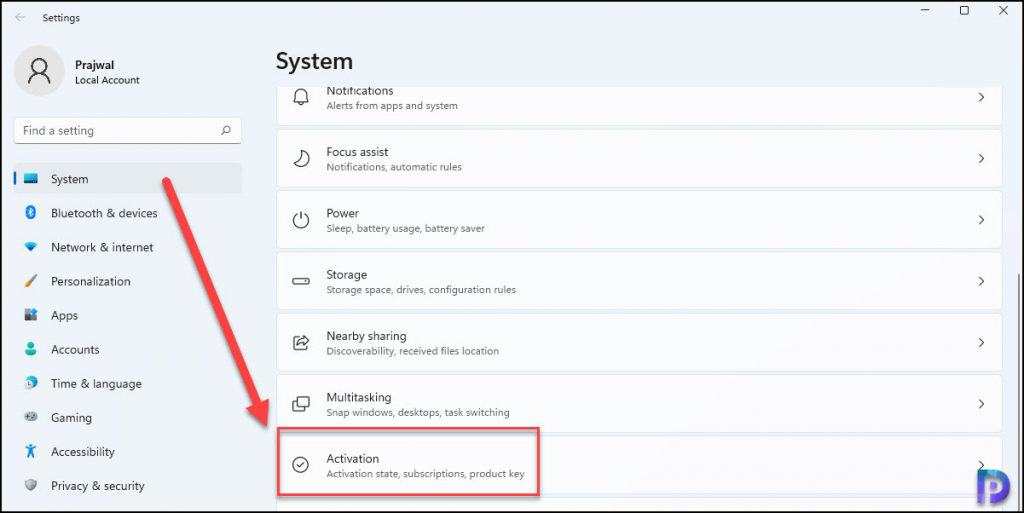
2. Add the Windows 11 product key
Expand Change product key and select the Change button. Administrator approval may be required before the key window opens.
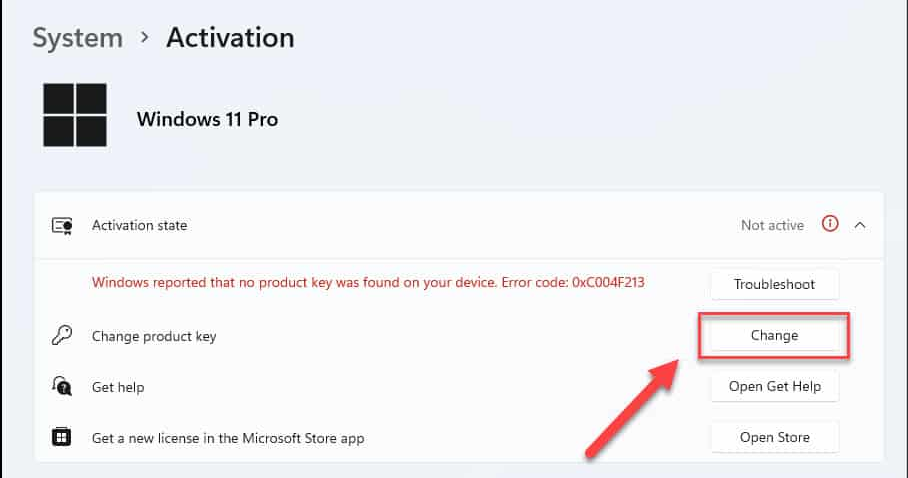
Type or paste the full 25-character key, select Next, and wait while Windows checks the license.
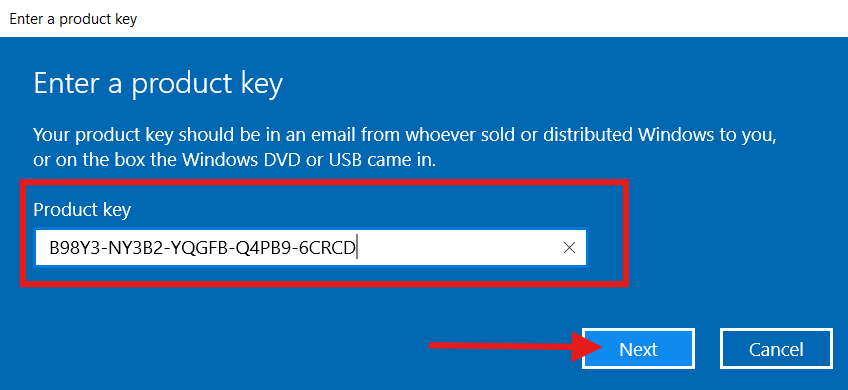
Windows may upgrade the installed edition after accepting the key. Allow the operation and any restart to finish, then return to System > Activation.
3. Review the activation result
If the activation state confirms that Windows is active, you are finished.
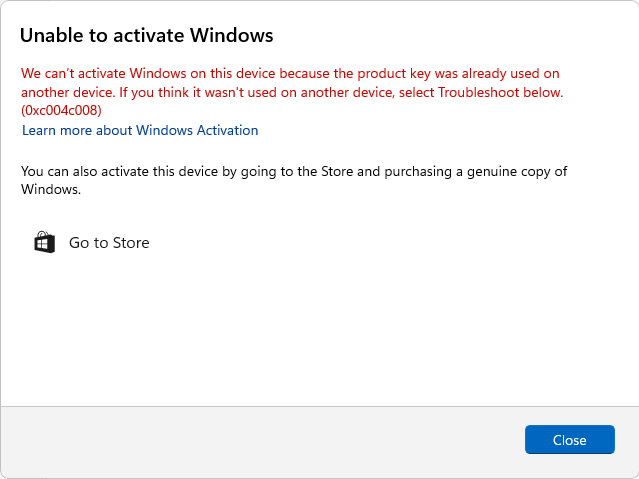
When error 0xC004C008 is returned, online activation was not completed. Close the message and use the telephone workflow in the following steps.
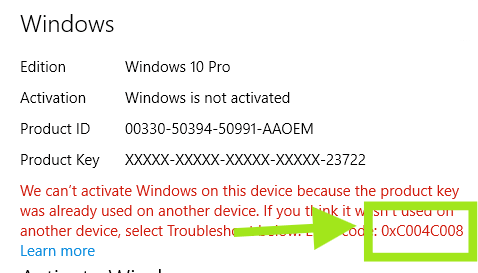
4. Launch telephone activation
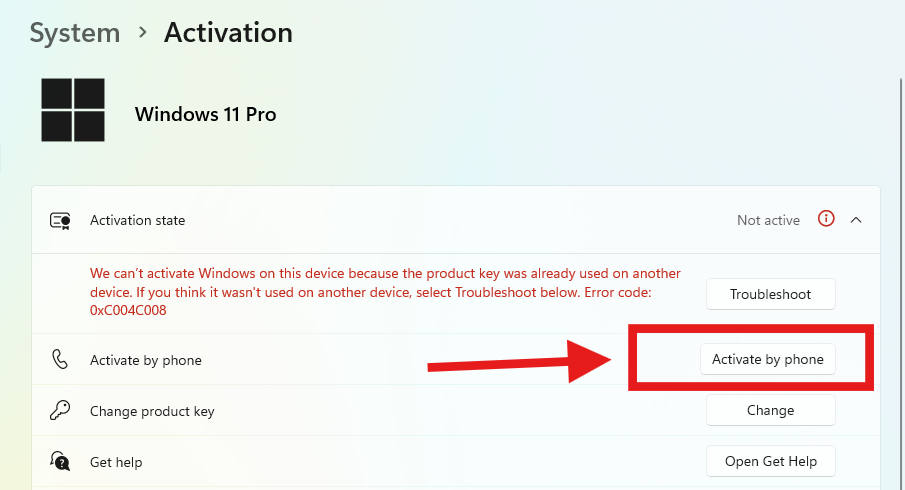
Select Activate by phone when it appears in the activation options. You can also press Windows + R, run slui 4, and select OK.
5. Record the Installation ID
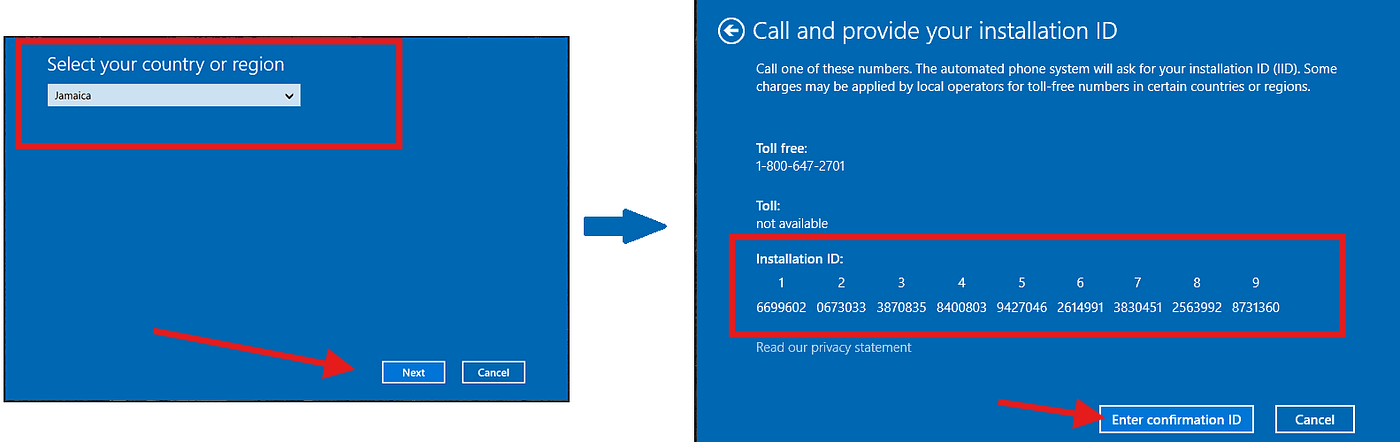
Choose a country or region and continue. If yours is unavailable, another listed location can be selected without changing the computer’s regional settings.
The wizard displays an Installation ID (IID) in multiple groups. Copy all groups from left to right and keep them in the original order.
6. Request a Confirmation ID
Use one of the following services to convert the Installation ID into a Confirmation ID (CID):
- Microsoft Product Activation Portal: Microsoft’s official and free method. The process is manual: sign in, select product activation, and submit the IID groups.
- InstantLicX Telegram bot: a quick paid alternative. Send the IID to the Telegram bot as text or an image instead of entering each group separately.
- GetCID.xyz: a paid web service that reads IID text and images. It also provides an API, a WordPress plugin, and bots for WhatsApp and Telegram.
Complete the free Microsoft method
Visit the Microsoft Product Activation Portal, sign in, and select Activate a Microsoft Product.

Choose Windows, select Windows 11 or the nearest available match, and advance until the form asks for the Installation ID.
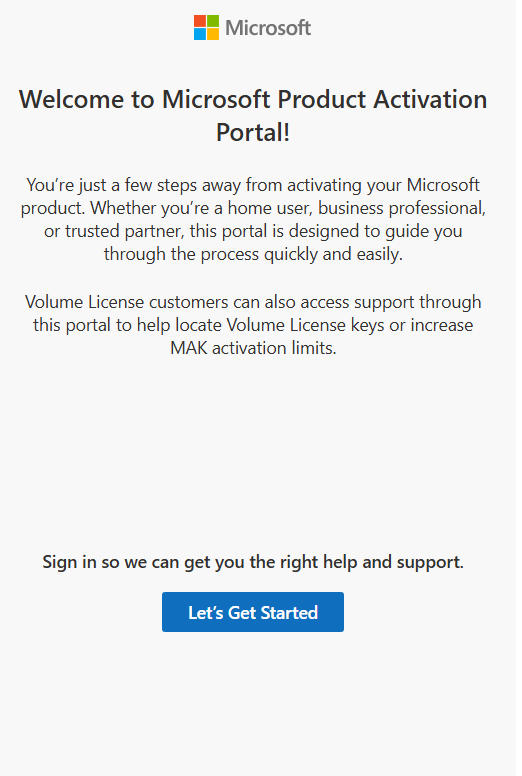
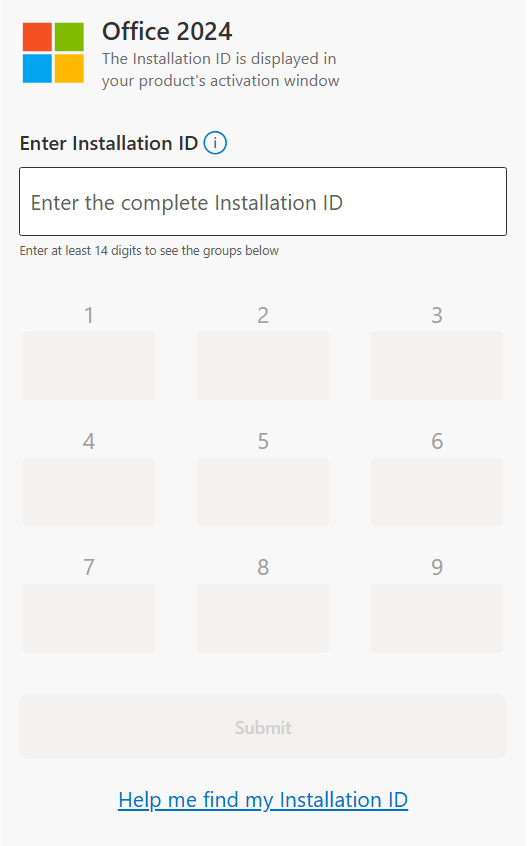
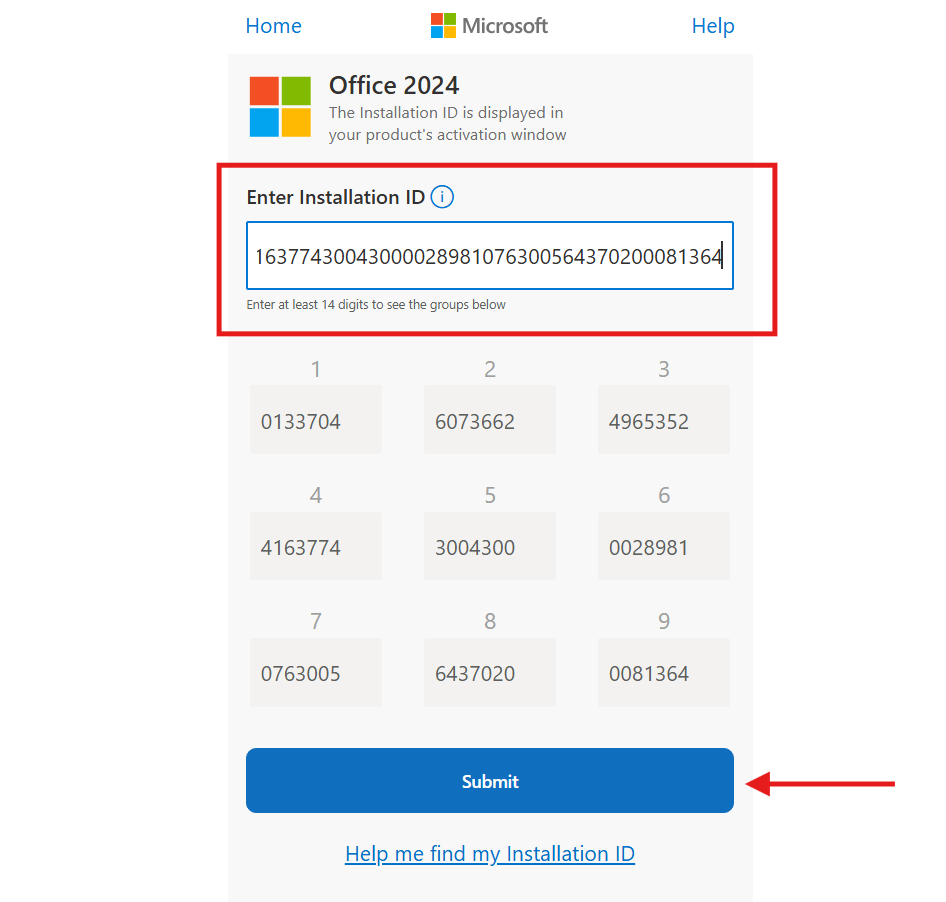
Enter the entire IID, check each group, and submit the form.
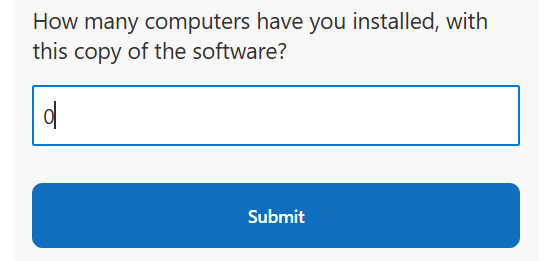
If Microsoft asks how many computers use this copy and you are completing a new activation, enter 0.
7. Apply the Confirmation ID
Once the Installation ID is approved, copy the Confirmation ID returned by the service.
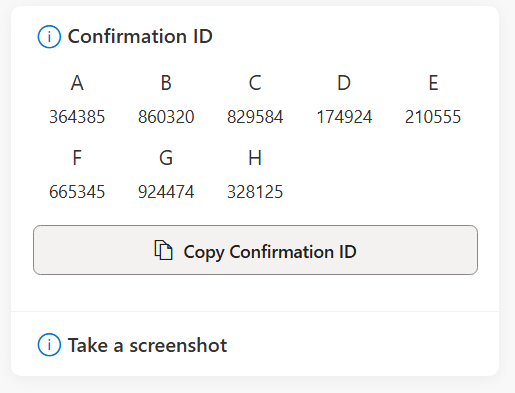
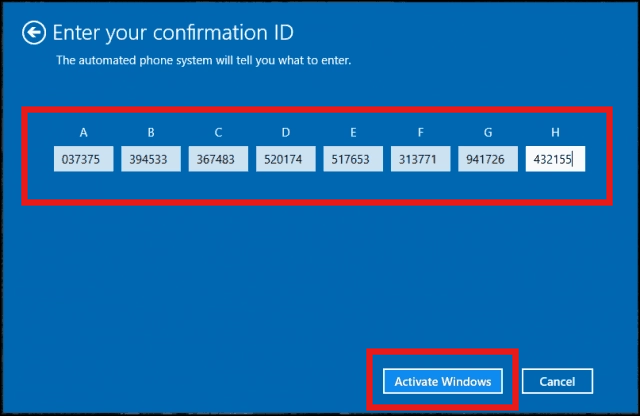
Return to the Windows wizard, place each CID group in its corresponding field, and select Activate Windows.
8. Verify Windows 11 activation
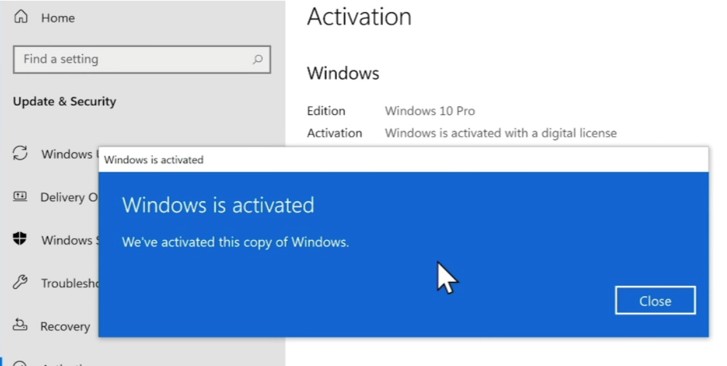
Go back to Settings > System > Activation. The activation state should now show that Windows is active.
Troubleshooting Windows 11 activation
- Verify that a Home key is being used with Windows 11 Home, or a Pro key with Windows 11 Pro.
- Install all pending updates and restart before repeating the activation attempt.
- Run the Activation troubleshooter when Windows reports a digital-license or hardware-change issue.
- Review every IID and CID group for missing or transposed digits.
- Repair an unstable or outdated Windows installation before retrying if Settings or the activation wizard does not open correctly.