Activate Windows Server 2025 Standard or Datacenter after checking the installed edition, converting Evaluation builds when necessary, and completing online or telephone activation.
Before you begin: check that Windows Server 2025 is not installed as an Evaluation edition, apply pending server updates, confirm whether the license is for Standard or Datacenter, and have the valid product key available.
1. Validate the Windows Server 2025 edition
A Standard or Datacenter retail key cannot be applied directly to an Evaluation installation. Open PowerShell or Command Prompt as administrator and inspect the current and supported target editions:
DISM /Online /Get-CurrentEdition
DISM /Online /Get-TargetEditions
If the current edition includes Eval or Evaluation, convert it before proceeding. Replace XXXXX-XXXXX-XXXXX-XXXXX-XXXXX with the key that belongs to the target edition.
Convert to Windows Server 2025 Standard
DISM /Online /Set-Edition:ServerStandard /ProductKey:XXXXX-XXXXX-XXXXX-XXXXX-XXXXX /AcceptEulaConvert to Windows Server 2025 Datacenter
DISM /Online /Set-Edition:ServerDatacenter /ProductKey:XXXXX-XXXXX-XXXXX-XXXXX-XXXXX /AcceptEulaOnly select a destination returned by Get-TargetEditions. Restart after DISM completes and verify the result again with DISM /Online /Get-CurrentEdition.
2. Find the Server 2025 activation controls
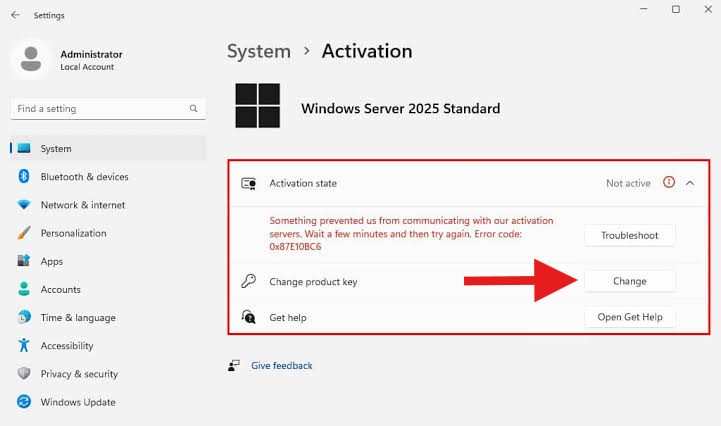
From the Start menu, open Settings. Go to System > Activation to review the server edition and its current licensing state.
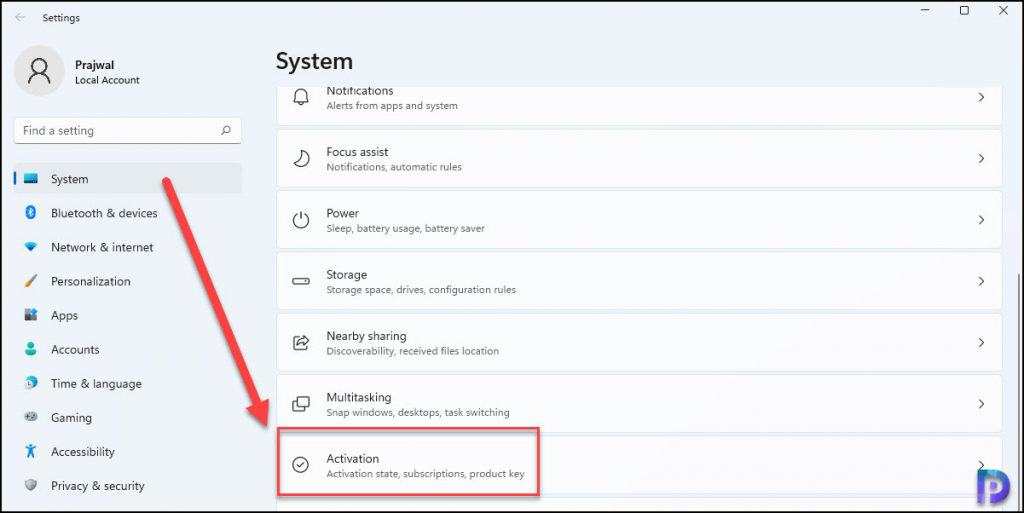
3. Install the Windows Server product key
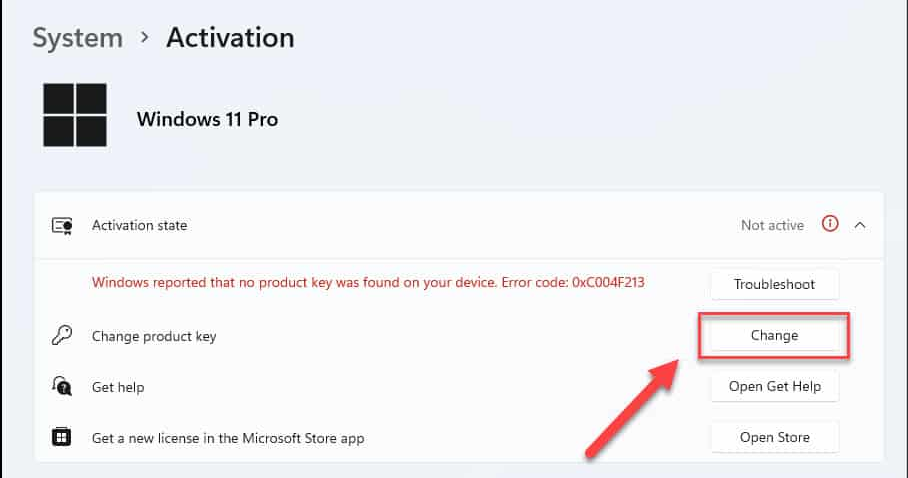
Open Change product key, select Change, and approve the administrator prompt if one appears.
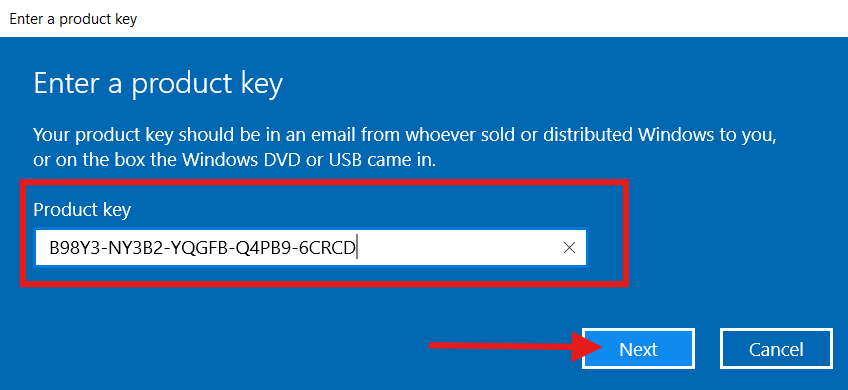
Enter all 25 characters, select Next, and let the server validate the license. A converted edition may require another restart before the final status is available.
4. Determine whether telephone activation is required
A successful activation state completes the procedure. You can also run slmgr /xpr in an elevated terminal for a quick license check.
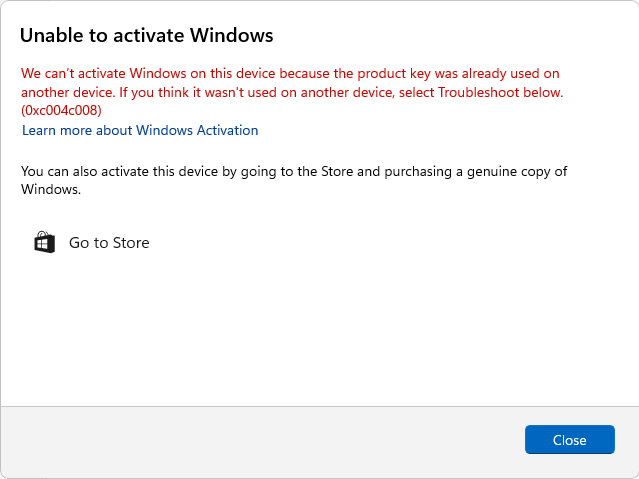
If error 0xC004C008 prevents online activation, dismiss the error and continue below to generate an Installation ID.
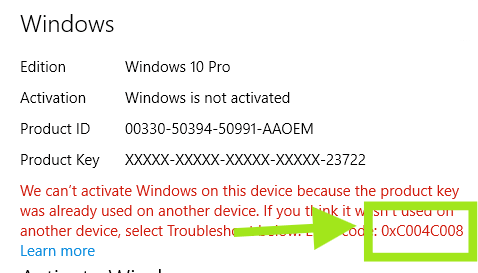
5. Open the telephone activation wizard
Choose Activate by phone from the available options. If no link is shown, press Windows + R, type slui 4, and select OK.
6. Capture the Installation ID
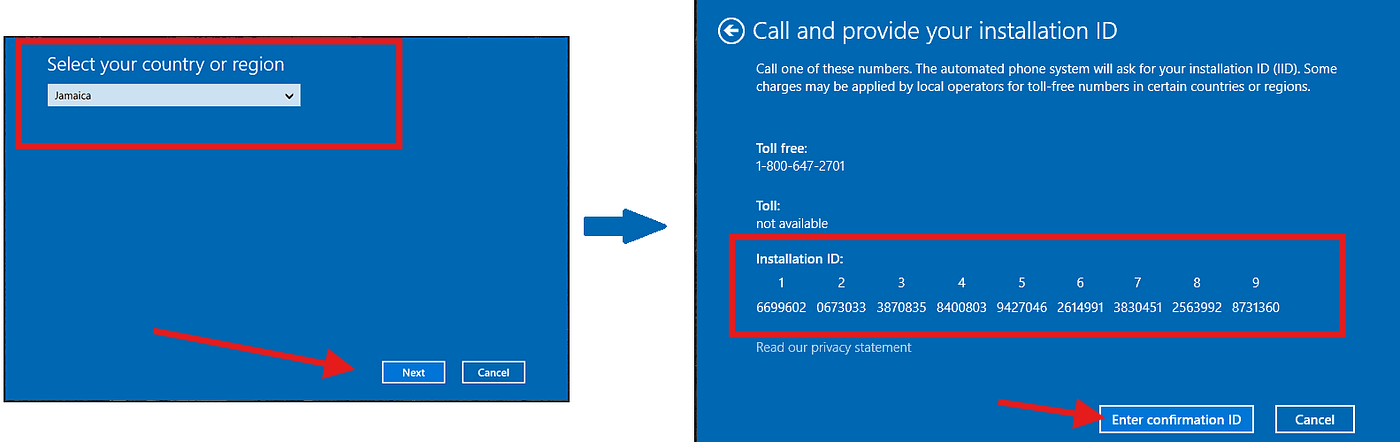
Select a country or region and continue. The location only advances the wizard; it does not alter the server language or regional configuration.
Copy the complete Installation ID (IID), preserving the sequence of every displayed group.
7. Exchange the IID for a Confirmation ID
Select the method you prefer for obtaining a Confirmation ID (CID):
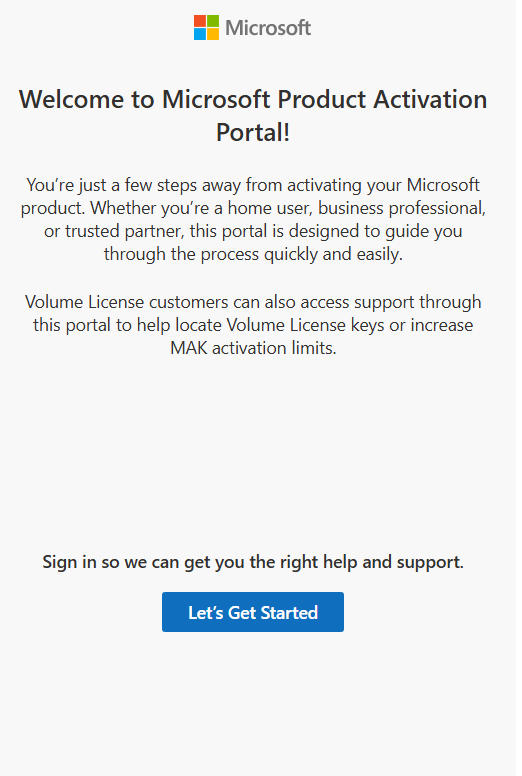
- Microsoft Product Activation Portal: the official free choice. It requires a Microsoft sign-in and manual entry of the Installation ID.
- InstantLicX Telegram bot: a faster paid route. Send the IID as text or a screenshot directly to the Telegram bot.
- GetCID.xyz: a paid browser-based service with text and image recognition, plus an API, WordPress plugin, and WhatsApp and Telegram bots.
Use Microsoft’s free portal manually
Open the Microsoft Product Activation Portal, authenticate with a Microsoft account, and select Activate a Microsoft Product.

Select Windows, choose Windows Server 2025 when available or the closest server entry offered, and proceed to the Installation ID form.
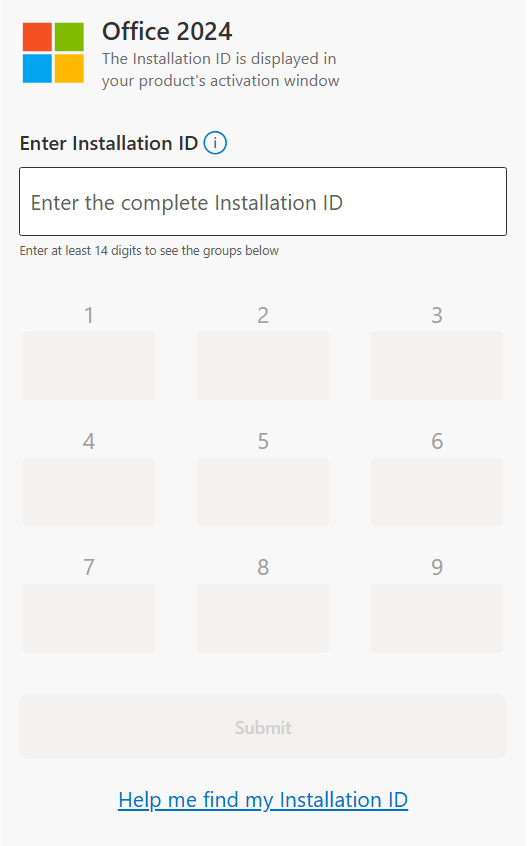
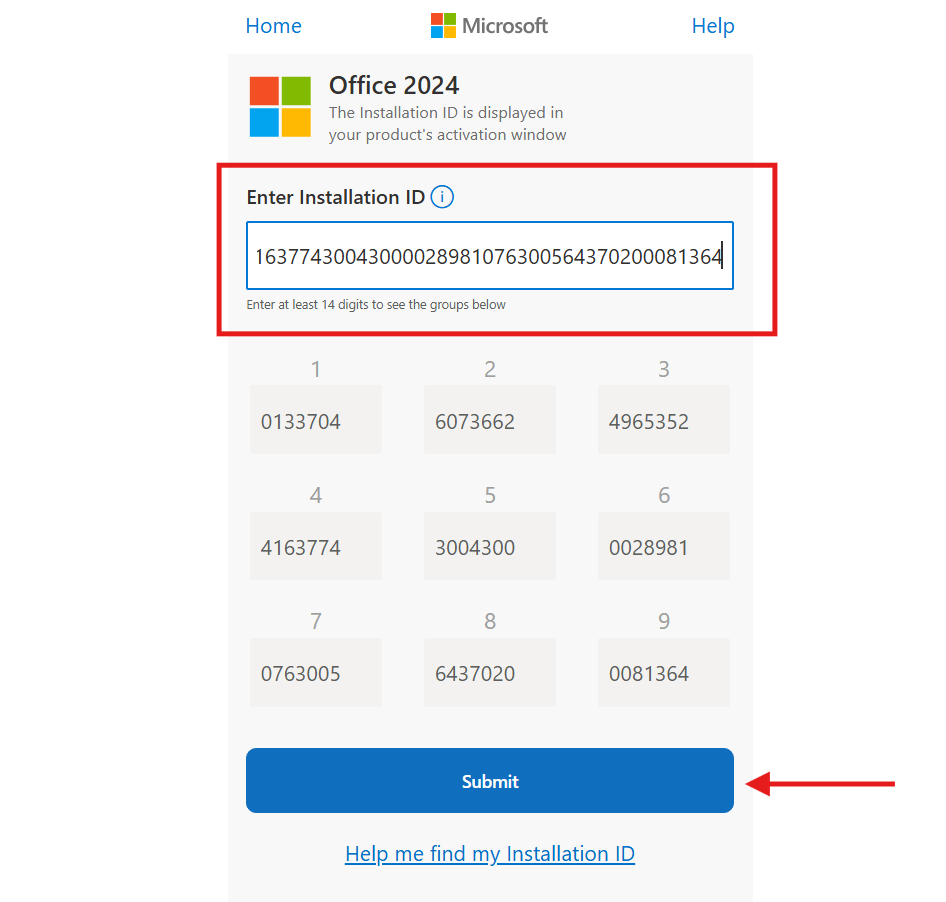
Submit the complete IID after checking that none of its groups are missing or out of order.
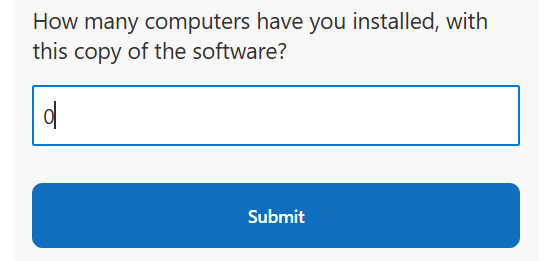
For a new activation, answer 0 if the portal asks how many computers have used this copy.
8. Enter the Server 2025 Confirmation ID
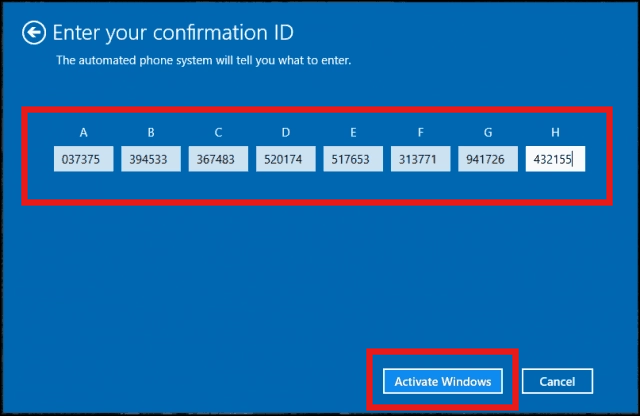
The chosen service returns a Confirmation ID after accepting the IID. Copy each group in the order displayed.
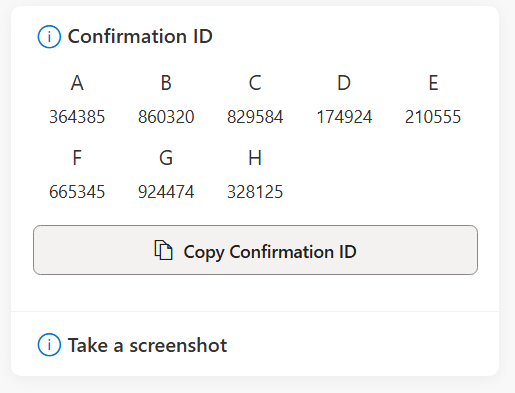
Return to the telephone activation window, enter every CID group in its matching box, and select Activate Windows.
9. Confirm the Windows Server 2025 license
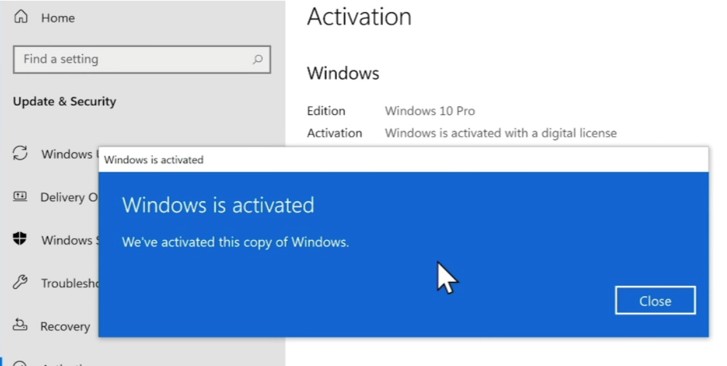
Reopen Settings > System > Activation and confirm the active state. For command-line verification, run slmgr /xpr as administrator.
Troubleshooting Server 2025 licensing
- Run
DISM /Online /Get-CurrentEditionand confirm that the edition no longer ends in Eval. - Verify that the key type and edition match Windows Server 2025 Standard or Datacenter as installed.
- Complete pending servicing operations and restart the server before another attempt.
- Use
slmgr /dlvwhen detailed licensing data or the current error code is needed. - Recheck the position of all IID and CID groups before requesting a replacement Confirmation ID.