Before you begin: Do not uninstall Office before following this guide. If you already uninstalled it, you can run this guide after installing the new Office, Visio, or Project version, but complete the cleanup before entering your new legitimate product key or license. This tool removes stored license entries; it does not activate Office or replace a valid license.
Microsoft Office, Visio, and Project can retain license entries after a trial expires, a previous installation is removed, or an unauthorized activator or malware leaves behind invalid records. Removing those entries before a new installation or before entering a newly purchased license helps prevent conflicts and makes the next activation attempt easier to troubleshoot.

1. Download and extract the removal tool
Download the Office license removal tool, save the archive to your computer, and extract it to a folder that is easy to find.
2. Run the removal script
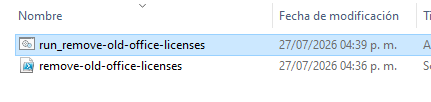
Open the extracted folder and double-click run_remove-old-office-licenses. If Windows asks for permission, allow the script to run. The tool opens an administrator terminal and scans the Office, Visio, and Project license entries stored on your system.

3. Select the licenses to remove
The script displays the license entries it found. Enter the numbers of the entries you want to remove, separated by commas, for example 1,3. If you are certain that none of the listed entries should remain, type ALL. Review the list carefully and keep any license that is still valid and needed.

4. Wait for the cleanup to finish
Leave the terminal window open while the script removes the selected entries and checks the remaining licenses. Wait until it reports that the process finished successfully before closing it.

5. Install and activate your new Office, Visio, or Project version
After confirming that the invalid or unwanted entries were removed, you can safely uninstall the old Office installation if necessary and install your new Office, Visio, or Project version. Enter the product key or license you purchased from a legitimate source only after the new installation is ready.
If you already uninstalled the old Office before starting this guide, install the new version first, run this cleanup before entering its new license, and then complete the activation process. This guide removes stored license entries; it does not delete your personal documents or activate the product by itself.
Need a license?
Buy affordable software licenses
Get Office, Windows, antivirus licenses, and activation help through our official stores.


 GGSEL Store
Are you a reseller?
Build your own license business
Sell digital products through your own Telegram license business or connect HydraCID X to your store by API.