Before you begin: this process does not activate Windows. It only changes the installed edition from Windows Home to Windows Pro, which is useful when your purchased product key is for Pro but the computer currently has Home installed. Your files, apps, and settings should remain in place, but you should still save your work before starting.
1. Open the Windows activation page
This guide applies to both Windows 10 and Windows 11. Start from the activation page, because that is where Windows lets you change the installed edition by entering a different product key.
On Windows 11, open Settings > System > Activation. On Windows 10, open Settings > Update & Security > Activation. Then locate Change product key and select Change.


Note: this also works if Windows Home already says it is activated. Activation and edition are related, but they are not the same thing. You can still use Change product key to start the edition upgrade to Pro.
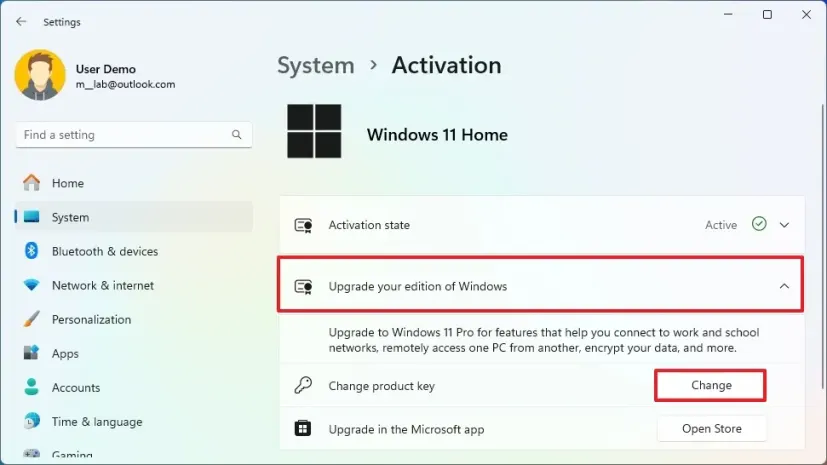
2. Enter the generic Windows Pro upgrade key
Enter the following generic Windows Pro upgrade key:
VK7JG-NPHTM-C97JM-9MPGT-3V66TThis key is used only to switch the edition from Home to Pro. It does not activate Windows. After the upgrade finishes, you will activate Windows Pro with your own valid Pro product key.

3. Confirm the upgrade and wait for Windows to finish
Windows will check the key and show that it is ready to upgrade the edition. Confirm the change and keep the computer powered on while Windows applies the upgrade.


4. If error 0x8004230f or 0x8007000d appears
In some systems, Windows may show error 0x8004230f or 0x8007000d during the edition change. This usually means the upgrade did not complete cleanly, not that your Pro key is invalid.

Use this recovery order:
- Restart the PC.
- Return to the activation page and verify the installed edition.
- If the edition is still Home, retry the upgrade process with the generic Pro key.
- Restart the PC again after the retry.
- If the error still persists, open Command Prompt or PowerShell as administrator and run these commands:
SFC /scannow
DISM.exe /Online /Cleanup-image /Restorehealth
After both commands finish, restart Windows and retry the Home to Pro upgrade process.
5. Activate Windows Pro with your own product key
When the edition upgrade is complete, Windows should show that the installed edition is Pro. At that point, the edition change is done and the computer is ready to activate with your own valid Windows Pro key.
If Windows Pro is not active yet, use Change product key again and enter the Windows Pro key you purchased.

Need a license?
Buy affordable software licenses
Get Office, Windows, antivirus licenses, and activation help through our official stores.


 GGSEL Store
Are you a reseller?
Build your own license business
Sell digital products through your own Telegram license business or connect HydraCID X to your store by API.